Running an Inventory Scan
An inventory scan is often the first step in understanding your cloud environment. It provides a read-only view of all discovered cloud resources, helping you map out your cloud footprint and attack surface before running security or compliance scans.
This guide walks through running an inventory scan using an AWS account as an example.
Prerequisites
Before running an inventory scan, ensure that:
- You have an active Nulink account
- You have access to an AWS account you are authorized to connect
- You have permissions to create cloud integrations
Step 1: Connect an AWS Account
Inventory scans require at least one connected cloud account.
- Navigate to the Integrations page in the Nulink platform
- Select Amazon Web Services (AWS)
- Follow the on-screen instructions to connect your AWS account
- This typically involves creating an IAM role with read-only permissions
- No agents or workloads are deployed
Once the connection is complete, the AWS account will appear as Connected in the Integrations list.
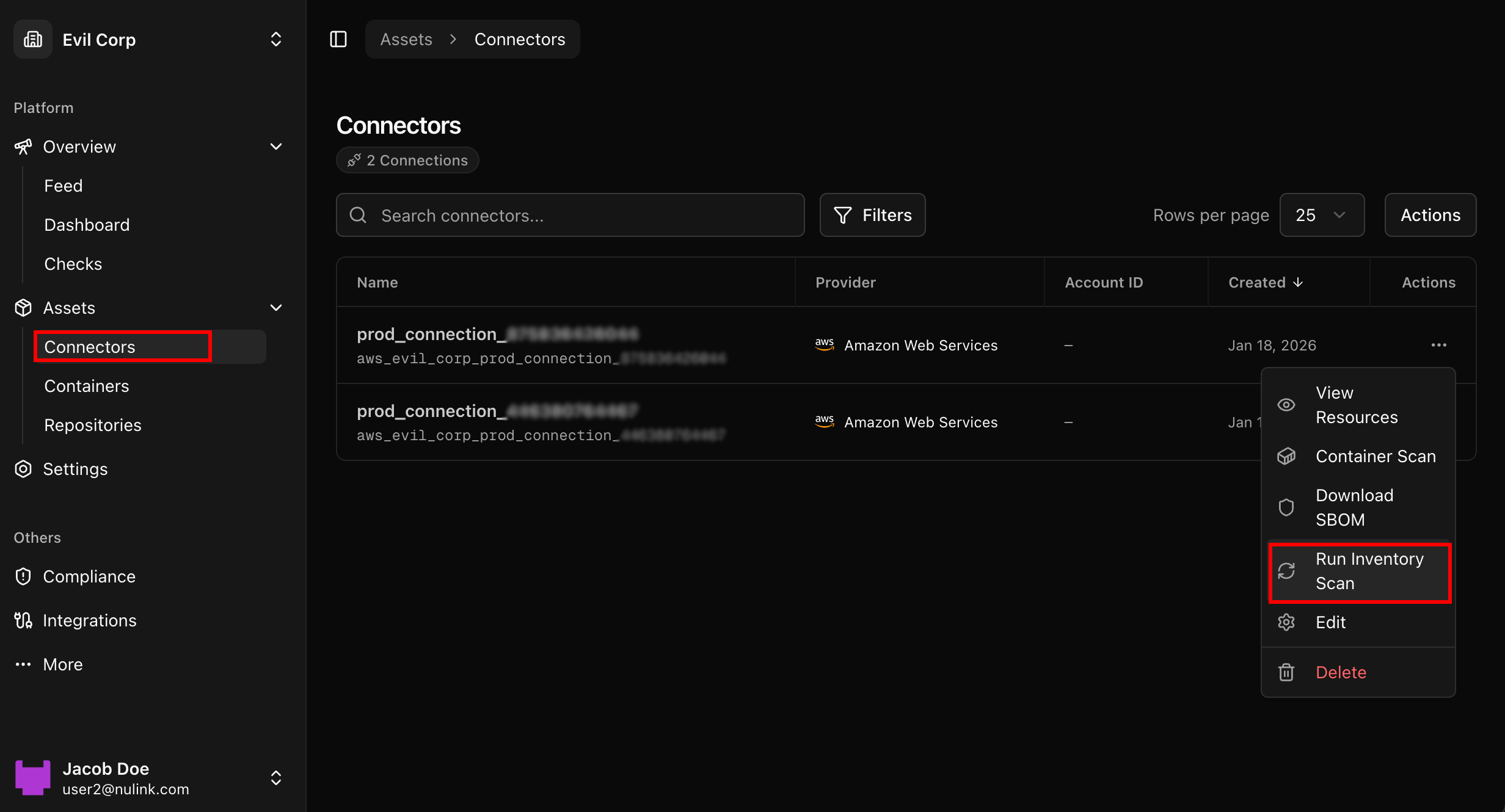
Step 2: Navigate to the Connectors Tab
After connecting your AWS account:
- Go to the Assets section in the main navigation
- Select the Connectors tab
The Connectors view shows all linked cloud accounts and services that Nulink can scan.
Step 3: Run the Inventory Scan
From the Connectors tab:
- Locate the connected AWS account
- Select Run Scan (or equivalent action)
- Choose Inventory Scan if prompted
The scan will begin immediately and run in the background.
📸 Running an inventory scan
Step 4: View Discovered Resources
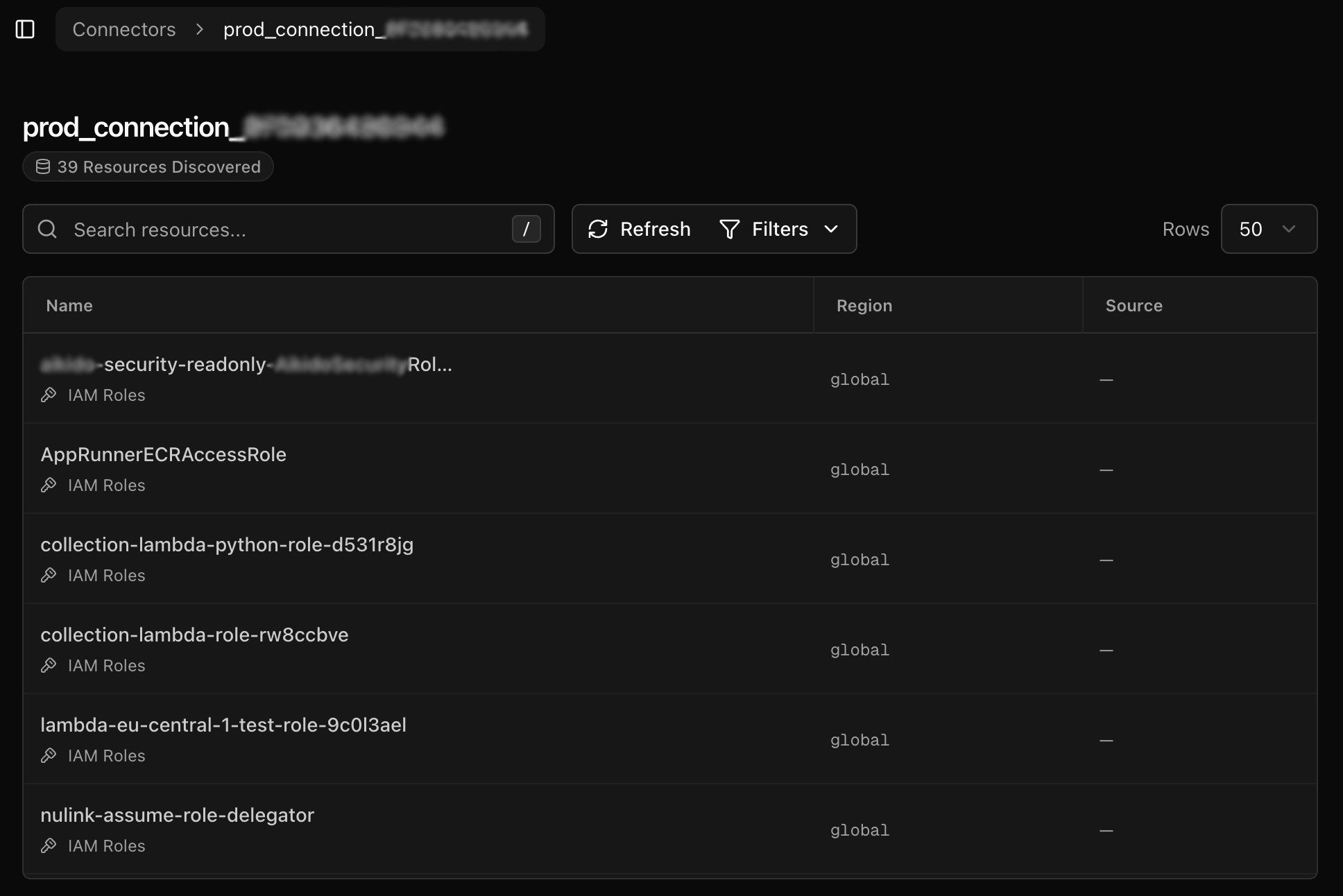
Once the scan completes, Nulink will display a full inventory of discovered resources.
What You’ll See
- Cloud services and resource types
- Resource names and identifiers
- Regions and associated metadata
- Account and environment context
This inventory represents a live snapshot of your cloud environment at the time of the scan.
📸 Inventory results view
What Inventory Scans Do (and Don’t Do)
Inventory Scans:
✔ Discover and list cloud resources
✔ Provide visibility into your cloud footprint
✔ Help map your attack surface
Inventory Scans Do Not:
✘ Identify vulnerabilities
✘ Flag misconfigurations
✘ Perform compliance checks
For security or compliance analysis, additional scan types must be run.
Next Steps
With your inventory in place, you can now:
- Run security scans to identify vulnerabilities
- Perform compliance scans against selected standards
- Attribute resources to teams and owners
- Track inventory changes over time
Continue to the next guide to learn how to run a security or compliance scan.
If you encounter issues connecting an AWS account or running a scan, refer to the FAQ & Troubleshooting section.