Repository Scanning
Nulink enables you to scan GitHub repositories for security issues directly within your development workflow. Repository scanning combines AI-powered SAST, exposed secret detection, and automated remediation to help teams identify and fix issues early.
Prerequisites
Before scanning a repository, ensure that:
- You have an active Nulink account
- GitHub is connected under the Integrations page
- You have access to the repository you want to scan
Step 1: Connect GitHub
If GitHub is not already connected:
- Navigate to the Integrations page
- Select GitHub
- Follow the on-screen authorization steps
- Grant access to the repositories you want Nulink to scan
Once connected, your repositories will be available for scanning.
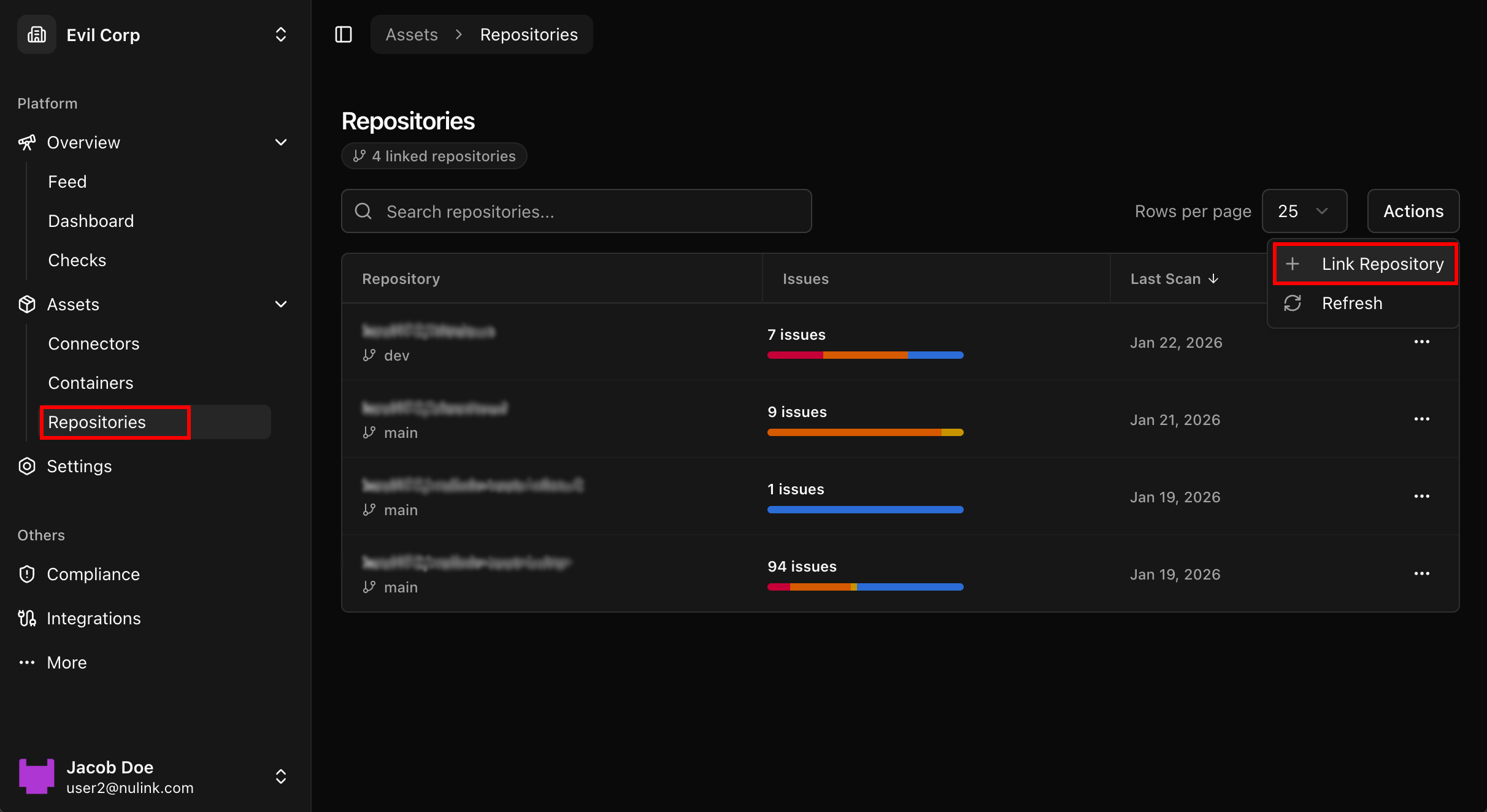
Step 2: Select a Repository to Scan
- Navigate to the repository scanning section of the platform
- Choose a repository from the list of connected GitHub repositories
- Select Run Scan
The scan will start immediately and analyze the repository contents.
📸 Repository selection and scan initiation
Step 3: Review Scan Results
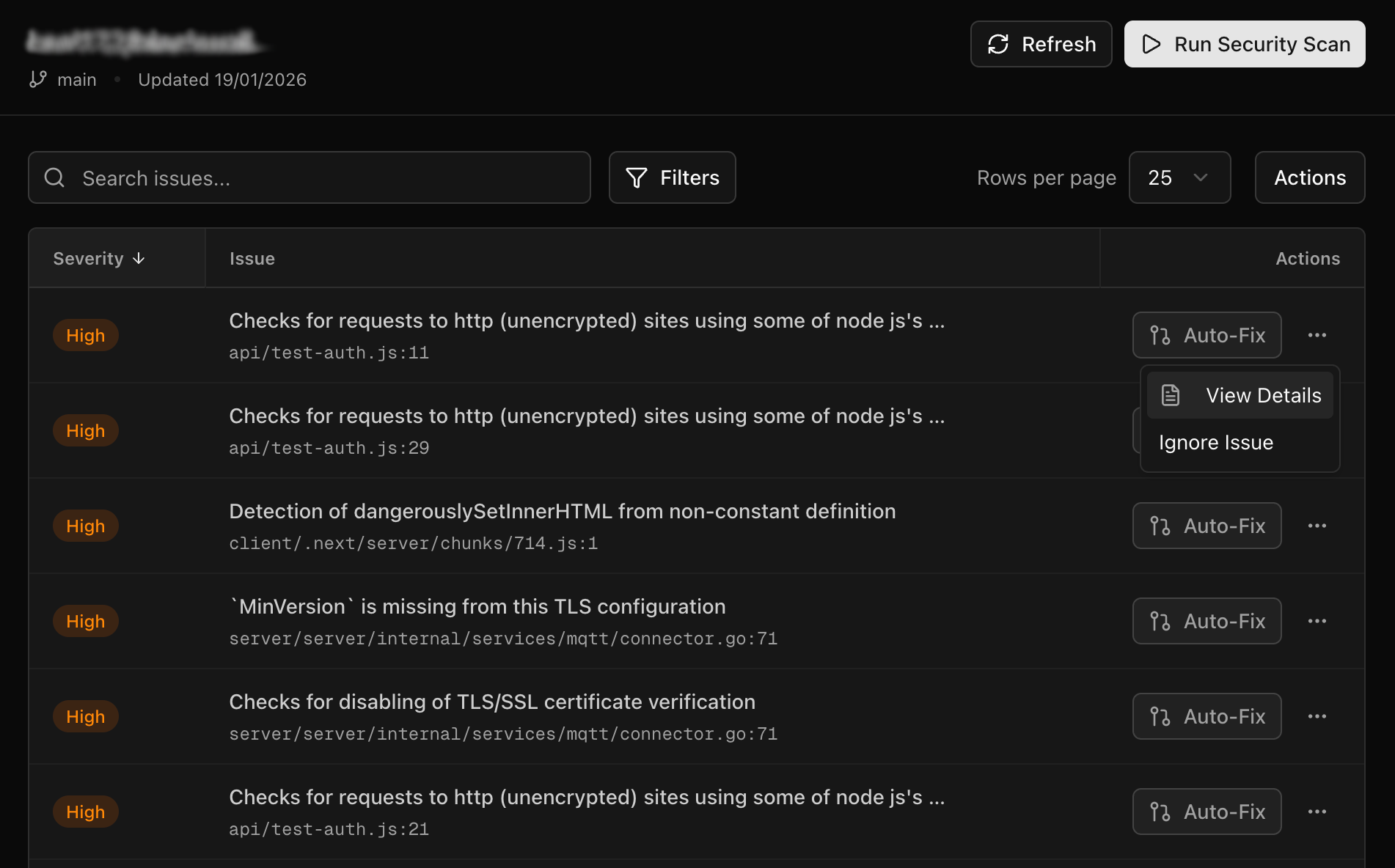
Once the scan completes, findings are available directly within the web interface.
Findings Include
- Identified security vulnerabilities
- Exposed secrets and sensitive data
- Severity and risk context
- Affected files and code locations
- Recommended remediation actions
Findings can be filtered, reviewed, and triaged directly from the results view.
📸 Repository scan results
Generating a PDF Report
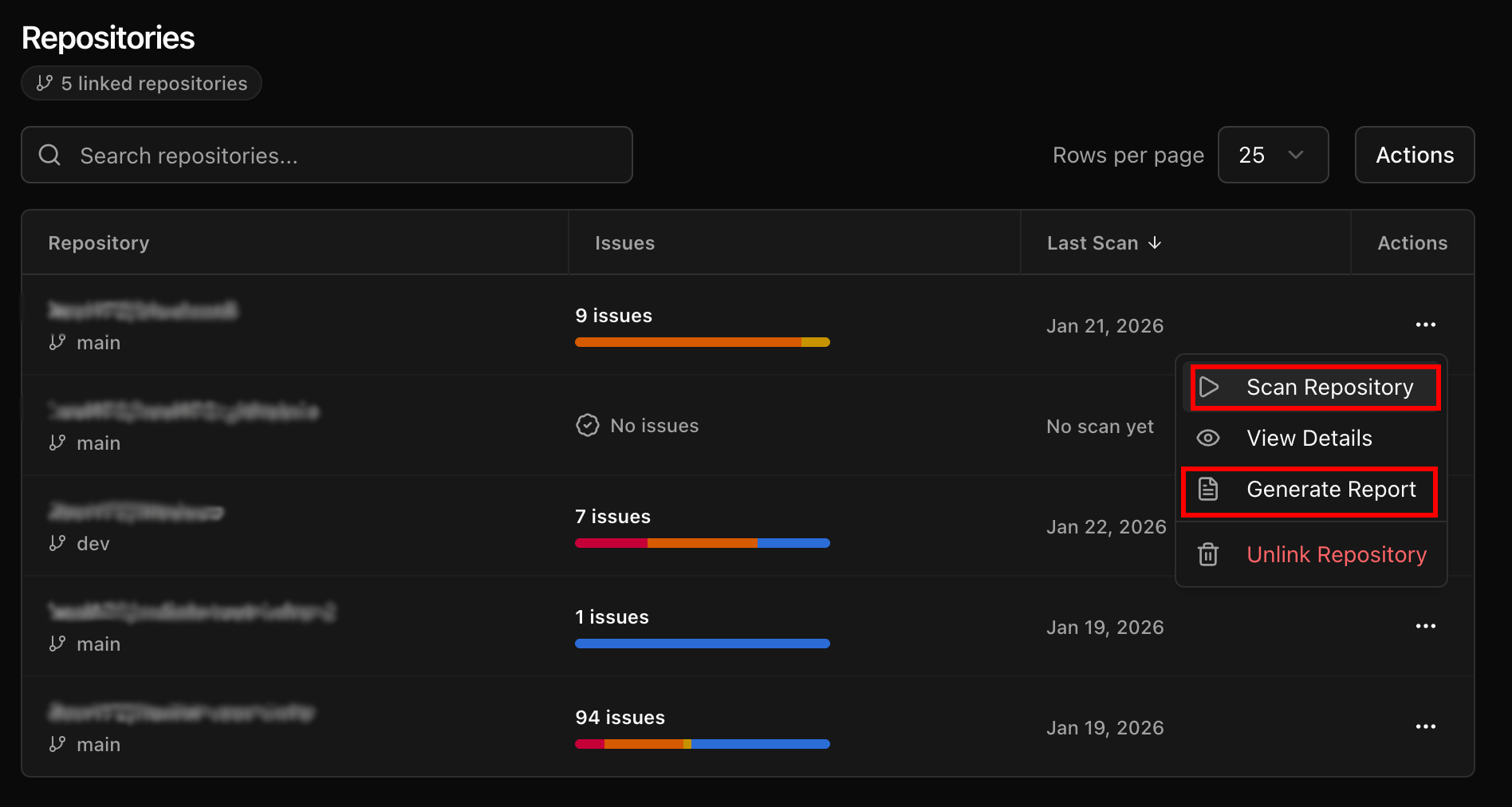
After a scan completes, you can generate a downloadable PDF report containing all findings.
PDF Reports Include
- Executive summary
- Detailed findings and severity levels
- File-level and code-level context
- AI-generated remediation guidance
These reports are ideal for sharing with stakeholders, security teams, or external reviewers.
📸 PDF report generation
Auto-Fix with Pull Requests
Nulink includes an Auto-Fix feature that can automatically remediate supported issues.
How Auto-Fix Works
- Nulink generates a secure fix for eligible findings
- A pull request is automatically opened on the repository
- The PR includes clear explanations of the changes made
- Developers can review, modify, or merge the PR
This enables teams to remediate issues without leaving their existing GitHub workflow.
AI-Assisted Manual Remediation
For findings that require custom handling, Nulink allows you to generate remediation manually.
- Select a specific finding
- Invoke the AI remediation assistant
- Receive tailored remediation steps and explanations
The AI model generates context-aware guidance based on the language, framework, and vulnerability type—helping teams understand and resolve issues efficiently.
When to Use Repository Scanning
Repository scanning is ideal for:
- Securing private codebases
- Detecting vulnerabilities early in development
- Preventing exposed secrets from reaching production
- Enforcing secure coding practices
- Supporting compliance and audit requirements
Next Steps
After scanning repositories, you may want to:
- Enable Auto-Fix for eligible issues
- Generate PDF reports for documentation or audits
- Run IaC scans on infrastructure repositories
- Combine findings with compliance scans
If you encounter issues connecting GitHub or running scans, refer to the FAQ & Troubleshooting section.